
This post contains affiliate links. We may earn a commission if you click on them and make a purchase. It’s at no extra cost to you and helps us run this site. Thanks for your support!
E-Type’s Welcome Kit Presentation Template, a 16-page InDesign file built at 1080 x 1920 pixels for screen presentations, is one of the more complete attempts, I have to say.
This review works from the template’s official preview spread; the full 16-page layout is exactly as E-Type ships it, plus the technical specifications are listed on Adobe Stock. No slides here are rebuilt or restyled. What follows is what’s actually in the file, read page by page, and what a working designer can expect once it opens in InDesign.
Please note that this template requires Adobe InDesign to be installed on your computer. Whether you use Mac or PC, the latest version is available on the Adobe Creative Cloud website—take a look here.
What Is a Welcome Kit Presentation Template, Exactly?
A welcome kit presentation template is a pre-built slide system that agencies and freelancers send to new clients at the start of a project. It usually covers who the studio is, what the engagement includes, and what happens next. Unlike a pitch deck, it isn’t selling the work. It’s confirming the work after the contract is already signed.
That distinction matters for how you judge this template. A welcome kit doesn’t need to persuade anyone. It needs to look organized, feel personal, and get out of the way fast. E-Type’s version is designed specifically for that narrower job.

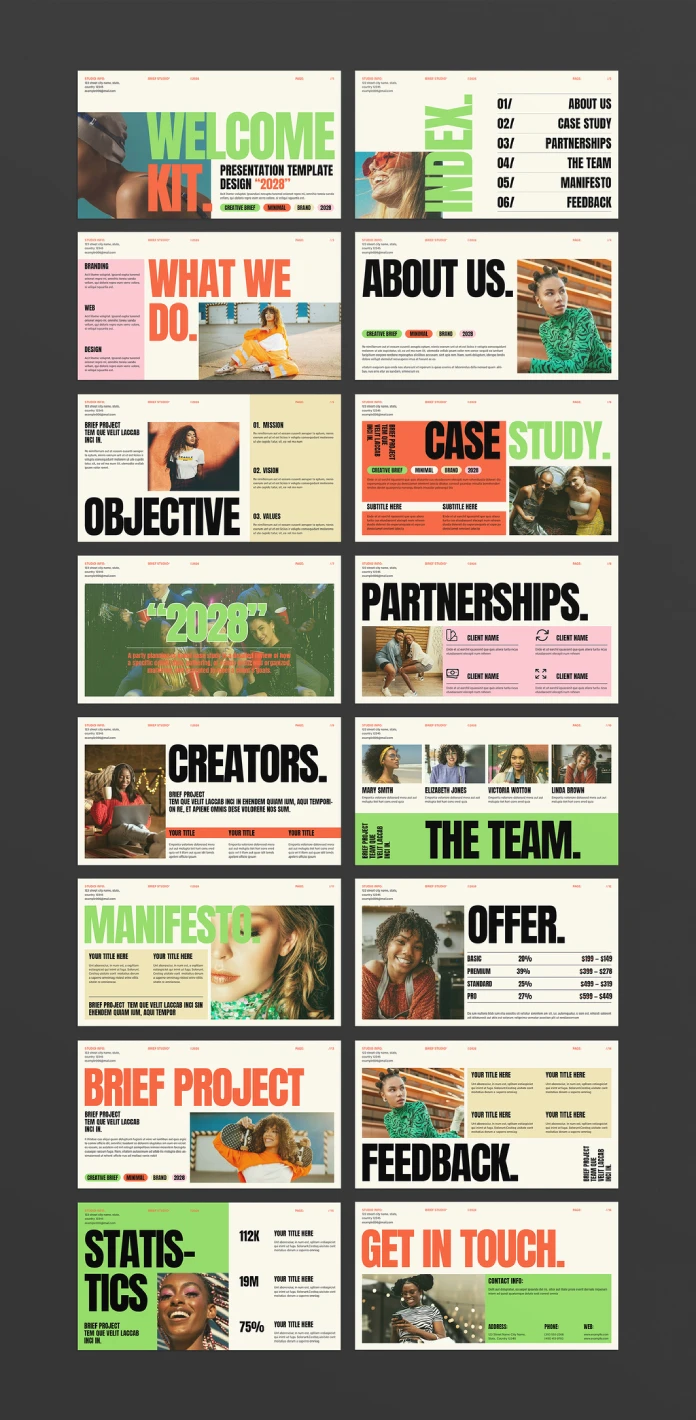
Inside the 16 Pages: A Breakdown That Matches the Index
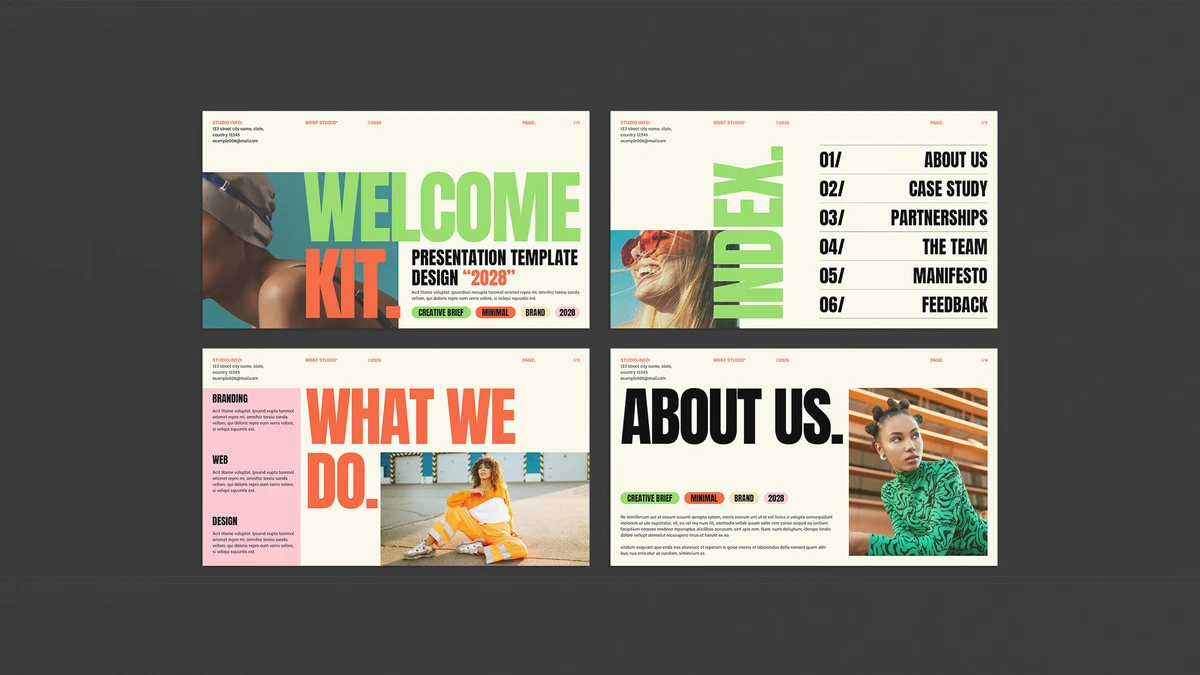
The deck opens with a cover slide, then an index page listing six sections: About Us, Case Study, Partnerships, The Team, Manifesto, and Feedback. That index isn’t decoration. Every page after it maps directly to one of those six categories, which is rarer than it sounds in template packs this size.
The Full Page List
- Cover (“Welcome Kit”)
- Index
- What We Do
- About Us
- Objective (mission, vision, values)
- Case Study
- A full-bleed quote slide for a client testimonial
- Partnerships (four-client grid)
- Creators (team intro)
- The Team (four-person photo grid)
- Manifesto
- Offer (a pricing tier table, four rows)
- Brief Project
- Feedback
- Statistics (three metric blocks)
- Get In Touch (contact details)
Sixteen slides, zero filler pages. Plenty of template packs pad the count with duplicate layouts wearing a different color. This one doesn’t do that. Every slide earns its spot in the sequence.
How the Template Is Built: What the File Structure Tells You
Both listings confirm the color system runs on a swatch palette rather than hardcoded fills, which means updating brand colors should take minutes, not hours. Change the swatches once, and the pink, coral, and mint blocks update across all 16 pages. That’s standard practice for a well-built template, though plenty of template packs skip it and force a manual hunt through every frame instead.
The listings also confirm photo placeholders sit on their own layer, separate from text and background elements. That layer separation is what makes InDesign’s Content Grabber tool useful here: click an image frame, and the grabber lets you swap the photo without disturbing its crop or position. None of the preview photography ships with the download. That detail trips up first-time template buyers constantly, so it’s worth repeating.
Adding Motion With the Animation Panel
Because this template targets screen presentations instead of print, the Animation panel (Window > Interactive > Animation) is where it earns a second look. Anyone comfortable with that panel can stagger headline text so words appear in sequence or fade a photo in gently rather than having it snap into place. Neither effect is built into the file by default. You add both yourself, per object, through motion presets and per-frame delay settings.
If you’ve never touched the Animation panel, budget an extra hour to learn it. The template doesn’t walk you through that part.
Where This Welcome Kit Presentation Template Wins and Where It Doesn’t
The typography does the heavy lifting here. Bold, condensed, uppercase headlines against a warm off-white background give every page a consistent editorial weight, even before a single word of real content goes in. Pair that with free fonts linked directly in the included help file, and you avoid the usual font-licensing scramble that kills momentum on a Friday afternoon deadline.
Where it struggles: the Offer slide assumes a four-tier pricing structure. If your agency sells one flat retainer, you’ll either delete three rows or stretch thin content across a layout built for density. The Team and Creators slides also assume four people. Solo freelancers will need to rebuild those grids from scratch rather than just deleting a box.
The Six-Screen Trust Arc: A Framework I Use for Judging Welcome Decks
I’ll be direct about this: the Six-Screen Trust Arc isn’t an industry term. It’s a shorthand I started using this year after comparing a dozen welcome kit presentation templates side by side, and it’s useful enough to name here.
The idea is simple. The first six screens of any client-facing welcome deck should move through a specific order: cover, index, who-we-are, what-we-do, mission, and proof. Skip the proof slide, or bury it past screen ten, and the client starts asking questions the deck should have already answered. E-Type’s template follows this arc almost exactly, placing the case study at position six. That placement alone suggests whoever built this has sat through real client onboarding calls.
A second shorthand worth naming: the Narrative-to-Data Ratio, which is just the proportion of storytelling slides (About Us, Manifesto, Feedback) against pure data slides (Statistics, Offer). This deck runs roughly 70/30 in favor of narrative. That’s the right ratio for a welcome kit. A sales deck should flip it.
Who Should Buy This Welcome Kit Presentation Template
Small design studios and solo creative directors get the most value here, specifically teams onboarding clients onto retainer work rather than one-off projects. The vertical 1080 x 1920 format also fits directly into screen-share presentations and Instagram Stories exports, which agencies increasingly use for onboarding content.
Skip it if your pricing model doesn’t fit four tiers, or if you need a landscape deck for a projector presentation. E-Type sells a separate landscape version of the same system, worth checking if that’s your format.
Quick Reference: Welcome Kit Presentation Template Specs
| Spec | Detail |
|---|---|
| Designer | E-Type (Adobe Stock contributor) |
| Format | Adobe InDesign (.indd / .idml) |
| Page count | 16 fully editable pages |
| Dimensions | 1080 x 1920 px (vertical, screen-ready) |
| Fonts | Free fonts, linked in the included help file |
| Photography | Preview only, not included in the download |
| Color system | Swatch-based, editable in one click |
| Animation | Manual, via InDesign’s Animation panel |
| Best for | Agency and freelance client onboarding decks |
Where to Find It
The kit is available on Adobe Stock. Pricing on Adobe Stock runs through its standard template licensing, either a subscription credit or a single-template purchase, so check current terms before buying.
Frequently Asked Questions
Does the welcome kit presentation template include the stock photos shown in the preview?
No. The preview photography is for display only. You add your own images to the 16 placeholder frames after purchase.
Can I edit this welcome kit presentation template in Canva instead of InDesign?
Some versions of E-Type’s welcome kit templates ship with a Canva file alongside the InDesign version. Check the specific listing you’re buying, since not every variant includes both formats.
Is the 1080 x 1920 format good for Instagram Stories or LinkedIn carousels?
Yes. That vertical ratio matches Instagram Stories natively and works well as an exported image carousel for LinkedIn, though you’ll need to export each page individually.
Do I need InDesign experience to use this template?
Basic experience helps, especially for the animation panel. Swapping text and photos requires almost no InDesign knowledge, since the Content Grabber handles image replacement without disturbing the layout.
How do I add the fade and sequential text animations to the slides?
Open Window > Interactive > Animation, select a text or image frame, then assign a motion preset like Fade In or Appear. Set the delay for each object manually to control the sequence.
Browse WE AND THE COLOR’s Templates category for more.
Subscribe to our newsletter!