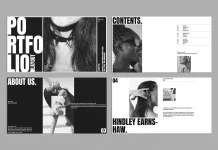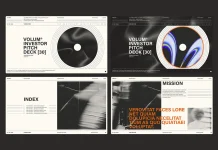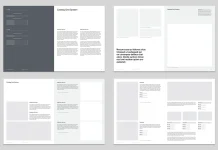


This post contains affiliate links. We may earn a commission if you click on them and make a purchase. It’s at no extra cost to you and helps us run this site. Thanks for your support!
Speed often compromises quality in the creative industry, but Adobe InDesign templates challenge this assumption. A template is not merely a file with pre-placed boxes. It represents a sophisticated infrastructure for design automation. When you construct this infrastructure correctly, you eliminate repetitive administrative tasks. This allows you to focus purely on creative direction. Effective templates function as force multipliers. They turn a single designer into a production team. This article explores how to utilize design templates in Adobe InDesign to build a responsive, scalable, and high-velocity workflow. We will examine the technical reality of style inheritance, global variables, and automated formatting.
How does a systematic approach redefine your workflow?
Designers often view files as static canvases. However, efficient Adobe InDesign templates function as interconnected systems. Every element on the page should relate to a central logic. This approach distinguishes the amateur from the expert. You must stop designing individual pages. Instead, start designing the rules that govern those pages.
When you use a systematic approach, you make critical decisions only once. You define the grid, the typographic hierarchy, and the color logic at the start. Adobe InDesign templates then enforce these rules indiscriminately. This prevents “layout drift.” Layout drift occurs when long documents slowly lose their visual consistency.
Furthermore, a strong system reduces cognitive load. You do not need to remember the exact leading for a caption. The template remembers it for you. Consequently, you gain mental space to solve complex visual problems. Adobe InDesign templates act as an external hard drive for your design intelligence.

Leveraging the “Based On” Style Architecture
The most critical feature for speed is the “Based On” function within Paragraph and Character Styles. Many designers create styles in isolation. This is a fundamental error. Professional Adobe InDesign templates utilize a strict hierarchy of inheritance.

You should create a “Root” style. All subsequent styles must inherit attributes from this source. For example, “Body Text” links to “Root.” “Captions” links to “Body Text.” If a client requests a font change, you modify the “Root.” Instantly, the change cascades through the entire document.
This architectural method turns hours of revision into minutes of processing. Adobe InDesign templates that lack this connectivity are “dead” files. They require manual labor for every global change. You must build “living” files that respond to input dynamically.

Utilizing Parent Pages for Global Governance
Adobe recently updated terminology from “Master Pages” to “Parent Pages.” These pages serve as the control center for Adobe InDesign templates. You must use them for more than just page numbers. Parent Pages should contain your grid systems, guide layouts, and primary graphical furniture.
Advanced templates utilize hierarchical Parent Pages. A specific “Chapter Opener” parent can be based on a “Grid Base” parent. Therefore, if you widen the margins on the “Grid Base,” every derived page updates automatically. This creates a fail-safe environment.
Moreover, use “Primary Text Frames” on your Parent Pages. This feature allows text to flow automatically as you add pages. For book design or long reports, this is non-negotiable. Adobe InDesign templates with Primary Text Frames allow for rapid content ingestion without manual text threading.

Automating Typography with GREP Styles
Speed requires automation, and GREP (Global Regular Expression Print) is the engine. You can embed GREP commands directly into the Paragraph Styles of your Adobe InDesign templates. This allows the software to style text based on patterns.
For instance, you can program a style to find any email address and apply a character style automatically. You can ensure that brand names always appear in bold small caps. You can prevent “widows” (orphan words) by forcing line breaks on short lines.
This happens in the background. As you type or paste text, the Adobe InDesign templates clean the typography for you. You become a designer rather than a copy editor. This level of detail elevates the quality of the work while reducing the time spent on proofing.

Deploying Text Variables for Live Data
Manual data entry kills efficiency. Adobe InDesign templates should utilize Text Variables to handle recurring information. You can define variables for running headers, creation dates, or file names.
When you update a variable, it updates across the entire document. This is crucial for version control. You never have to manually update the “Revision Date” on fifty pages. The template handles it.
Furthermore, you can use “Running Header” variables. These capture the text of the first or last instance of a specific style on a page. Dictionaries and catalogs rely on this. By integrating these into Adobe InDesign templates, you automate navigation aids. The document builds its own signposting.

Scaling Output with Data Merge
For high-volume projects, Data Merge changes the game. This feature allows Adobe InDesign templates to read external data sources, like CSV files. It is essential for business cards, tickets, or direct mail.
You map data fields to the layout. InDesign then generates hundreds of unique pages in seconds. The template acts as a mold. The data acts as the material. This workflow eliminates copy-paste errors entirely.
Additionally, this method separates content from design. A copywriter can work in a spreadsheet while you refine the Adobe InDesign templates. You merge the two at the final stage. This parallel workflow significantly reduces project turnaround time.

The Role of CC Libraries in Template Ecosystems
A file does not exist in a vacuum. Adobe InDesign templates achieve maximum speed when paired with Creative Cloud (CC) Libraries. You can store snippets, color groups, and logos that link back to the template styles.
When a team member drags an asset from the library, it respects the document’s definitions. This ensures consistency across a distributed team. A designer in London uses the same assets as a designer in Tokyo.
Therefore, the template extends beyond the .indt file. It becomes a shared language. Adobe InDesign templates and CC Libraries together form a single source of truth for the brand identity.

Final Thoughts on Design Velocity
True speed results from precision, not haste. Adobe InDesign templates provide the rigorous structure required for high-speed production. By mastering style inheritance, Parent Page hierarchies, and GREP automation, you transform your practice.
You stop fighting the software. You start collaborating with it. The industry rewards designers who deliver systems, not just pages. Therefore, invest the time to architect your Adobe InDesign templates correctly. The initial effort pays dividends in every subsequent project.
FAQ: Adobe InDesign Templates
What makes a file a true Adobe InDesign template?
A true Adobe InDesign template uses the .indt file extension. When opened, it generates a new, untitled .indd document. This protects the original structure from accidental overwrites and ensures every project starts from a clean, standardized state.
How do nested styles improve workflow speed?
Nested styles within Adobe InDesign templates allow you to embed character formatting inside paragraph styles. For example, you can force the first three words of a paragraph to be bold and red automatically. This eliminates manual highlighting and ensures consistent formatting for repeated text structures.
Why should I use Parent Pages instead of just copying pages?
Parent Pages in Adobe InDesign templates act as global masters. If you move a guide or change a footer on a Parent Page, it updates instantly across hundreds of document pages. Copying pages does not create this link, meaning updates must be applied manually to every single page.
Can InDesign templates contain interactive elements?
Yes. Adobe InDesign templates can store buttons, hyperlinks, animation settings, and form fields. This is vital for interactive PDFs. Setting these up in the template ensures that navigation functions correctly on every new document without repetitive coding.
What is the benefit of mapping styles to export tags?
Mapping styles to export tags in Adobe InDesign templates ensures accessibility and web compatibility. It defines how text exports to HTML or EPUB (e.g., H1, H2, P). This saves hours of remediation work when repurposing print layouts for digital formats.
How do snippets relate to templates?
Snippets are saved fragments of Adobe InDesign templates (like a complex sidebar or table). You can save these to your desktop or CC Library. They retain their style associations, allowing you to quickly drop complex, pre-formatted elements into any document.
Check out other professional graphic design templates for different creative needs here at WE AND THE COLOR.
Subscribe to our newsletter!