

This post contains affiliate links. We may earn a commission if you click on them and make a purchase. It’s at no extra cost to you and helps us run this site. Thanks for your support!
Great design requires a solid foundation, and the right InDesign magazine layout provides exactly that. Visual storytelling relies heavily on structure, hierarchy, and pacing. Tom Sarraipo understands this necessity. He created a template that balances artistic freedom with rigid professional standards. This tool empowers designers to produce high-quality print media without starting from zero. It offers a sophisticated solution for creative professionals who value both efficiency and aesthetics.
Please note that this professional branding template requires Adobe InDesign installed on your computer. Whether you use Mac or PC, the latest version is available on the Adobe Creative Cloud website—take a look here.

What makes this InDesign magazine layout an essential tool for modern publishers?
Publishing deadlines rarely forgive delays. Consequently, designers need resources that accelerate their workflow. This InDesign magazine layout functions as a robust framework for various editorial projects. It specifically targets the needs of lifestyle, fashion, and travel publications. However, its versatility extends to corporate brochures and portfolios. Sarraipo crafted this cohesive 36-page document to ensure narrative continuity. You immediately notice the thoughtful arrangement of text and imagery. Therefore, the template eliminates the tedious setup of grids and guides.
The Power of a Modern Aesthetic
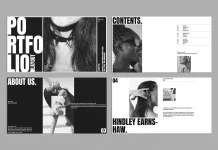
First impressions matter in publishing. This InDesign magazine layout utilizes a modern, minimalist style. It prioritizes white space. This choice allows content to breathe. Furthermore, the typography draws inspiration from Swiss style layout principles. Clean sans-serif fonts dominate the headers. They create a bold contrast against the body text. Readers navigate the pages effortlessly because the hierarchy guides their eyes.
You see large, full-bleed image placeholders throughout the design. These areas emphasize visual storytelling. For photography portfolios or travel journals, this feature is crucial. The design does not compete with your content; instead, it frames it. Minimalist magazine design relies on this restraint. Therefore, your photographs become the hero of the spread.

Technical Specifications for Professional Print
A beautiful screen design must also translate to paper. This InDesign magazine layout comes fully prepared for professional production. Sarraipo built the file in standard A4 size. Additionally, the template utilizes the CMYK color mode. This ensures that colors remain accurate during the printing process. You avoid the common headache of RGB-to-CMYK conversion shifts.
The file includes 36 custom pages. Each page features a unique grid structure. However, they all feel connected. The consistent use of margins and columns unifies the magazine. Also, the template includes a clearly defined bleed area. This prevents white edges from appearing after the trimming process. Designers appreciate these technical details. They save hours of pre-press preparation.
Fully Customizable for Creative Freedom
Templates often feel rigid, but this InDesign magazine layout offers total flexibility. You can edit every element. The text layers await your typography. The image frames accept your photos instantly. You simply drag and drop your content. Moreover, the color palette is adjustable. You can match the document to your specific brand identity.
Please note a critical detail regarding the visuals. The stunning photos shown in the preview serve only for display. The downloadable file excludes these images. You must provide your own visual content. This actually benefits the designer. It forces you to make the layout truly yours. You replace the placeholders with your unique vision.
Why Design Layouts Matter for SEO and Engagement
Printed magazines have a digital life too. Many publishers convert their InDesign magazine layout into digital PDFs or flipbooks. A well-structured layout retains readers. It reduces bounce rates on digital viewing platforms. High-quality editorial layout design signals authority. Readers trust content that looks professional.
Furthermore, a strong visual structure helps information retention. The layout breaks down complex articles into digestible chunks. It uses pull quotes and subheadings effectively. These elements act as hooks for skimming readers. Therefore, good design directly influences audience engagement.
Saving Time and Budget
Creating a magazine from scratch takes weeks. Using this InDesign magazine layout significantly reduces that timeline. You bypass the initial conceptualization phase. Instead, you jump straight into content placement and refinement. This efficiency translates to cost savings. Freelancers can deliver projects faster. Agencies can handle more clients.
Ultimately, this template represents a smart investment. It combines high-end design theory with practical application. Tom Sarraipo delivers a product that respects the designer’s time. It elevates the final output without the associated stress of deadline management.
Frequently Asked Questions
What software do I need to edit this template?
You need Adobe InDesign to open and edit the file. The template works best with Creative Cloud versions but is often compatible with older versions like CS4, CS5, or CS6 via IDML files.
Are the photos included in the download?
No, the photos in the preview are for display purposes only. You must replace them with your own images or stock photography.
Can I change the size of the magazine?
The template comes in standard A4 size. You can resize it, but this requires adjusting the layout elements manually to fit new dimensions.
Is this template suitable for digital publishing?
Yes. While designed for CMYK print, you can export the final design as an interactive PDF or digital publication for web viewing.
How do I change the fonts?
You can easily replace fonts using the “Find/Replace Font” feature in InDesign or by modifying the Paragraph Styles panel.
Check out other highly professional graphic design templates here at WE AND THE COLOR.
Subscribe to our newsletter!