
This post contains affiliate links. We may earn a commission if you click on them and make a purchase. It’s at no extra cost to you and helps us run this site. Thanks for your support!
Editorial Text Animations in Premiere Pro Start With One PRPROJ File.
Honestly, there are so many template titles that look like they came from the same stock folder. Wavebreak Media’s Simple Editorial Text Animations template for Adobe Premiere Pro breaks that habit, and I think it does so on purpose. Serif type sits on a grainy field, and every line speaks in a different voice.
I judge editorial text animations the way I judge book covers. Does the type earn its place? This guide covers how editorial text animations work, what the template includes, and how its PRPROJ file lets you swap in your own words without breaking the motion.
Please note that this customizable film template requires Adobe Premiere Pro installed on your computer. Whether you use Mac or PC, the latest version is available on the Adobe Creative Cloud website—take a look here.
What Are Editorial Text Animations in Premiere Pro?
Definition. Editorial text animations are short, typography-led motion titles that borrow the hierarchy of a magazine page. One dominant headline leads, and contrasting lines follow beneath it.
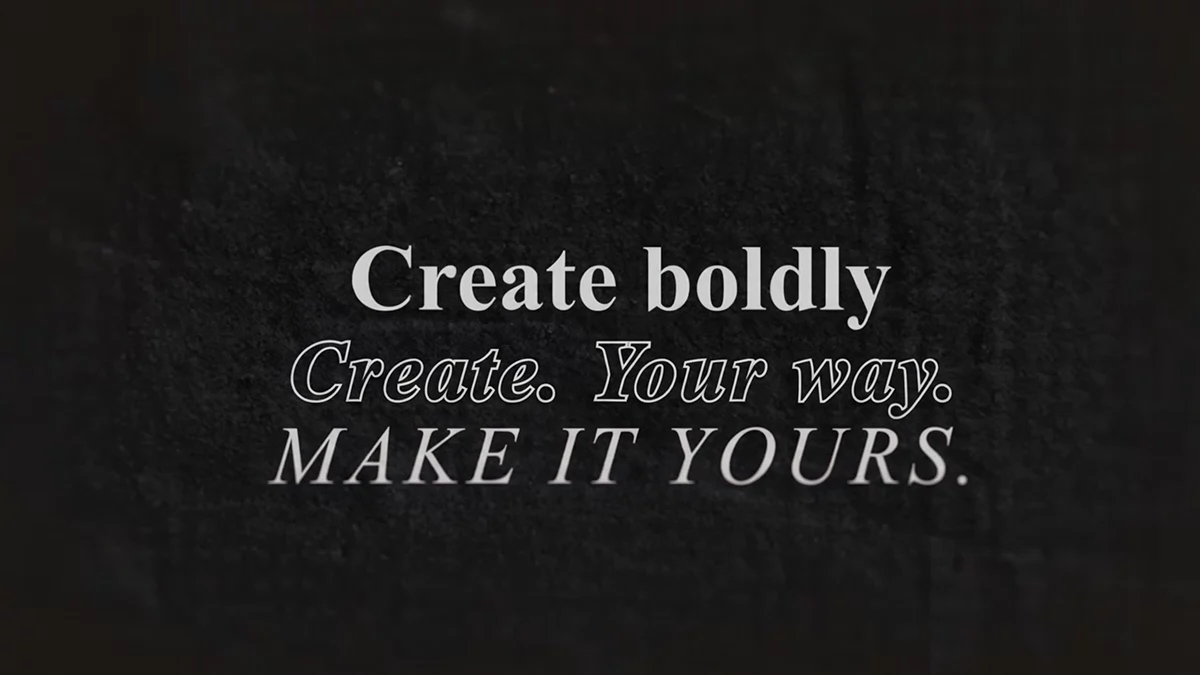
The preview frame shows the idea clearly. The top line, “Create boldly,” is set in a heavy roman serif. Below it, “Create. Your way.” appears in outlined italics. The last line, “MAKE IT YOURS.,” runs in spaced italic capitals over a background with visible paper grain.

I call this layout the Editorial Hierarchy Stack. It stacks three type treatments in one block, and each one has its own job. The bold roman line states the claim, and the outlined italics soften it for a beat. Spaced capitals then sign off.
The Stack gives viewers of editorial text animations a built-in reading order. They read top to bottom, and the type tells them how loud each line is. Which of your lines deserves the loudest voice?
What Does the Wavebreak Media Template Include?
Wavebreak Media is a contributor on Adobe Stock that sells a long run of PRPROJ templates for editorial text animations and other video titles. Its contributor page also lists titles such as Classic Typewriter Title and Clean Minimal Text Template. Because the contributor sells one file type across the catalog, the workflow you learn here carries over to those titles.
Adobe Stock lists this item as a template, and the file format is PRPROJ. The public listing page gives few technical details, so I won’t guess at them. Before you build editorial text animations on it, check the number of sequences, the resolution, the frame rate, and the minimum Premiere Pro version before you buy.
What Is a PRPROJ File, and How Does It Work?
Definition. A PRPROJ file is an Adobe Premiere Pro project file. It stores your sequences, bins, effect settings, and links to media, but it doesn’t contain the media itself.
Under the hood, the file is gzip-compressed XML. That detail matters little for editing, yet it explains why the file stays small.
For editorial text animations, this format has a real advantage. You get the finished timeline, not only a preset. The animated text already sits on its tracks, so you edit the words and leave the motion alone.
PRPROJ Template Versus MOGRT
A MOGRT is a motion graphics template that lives in the Essential Graphics panel. A PRPROJ template gives you the whole sequence instead. Choose the MOGRT when you want one title on any timeline. Choose the PRPROJ when you want to see and edit the full timing of your editorial text animations.
One caution applies. Premiere Pro opens projects from older versions, yet it can’t open projects saved in a newer one. So check the minimum version on the listing first.
How Do You Use a PRPROJ Text Animation Template in Premiere Pro?
I use a routine I call the Four-Pass Swap for editorial text animations. Each pass has one job. Skipping a pass costs you time later.
Pass 1. Open and Save a Working Copy
Choose File > Open Project and select the PRPROJ file. Then choose File > Save As right away. Save the copy in your own project folder, and the original download stays clean for the next job.
Pass 2. Relink Media and Check Fonts
If Premiere asks for missing media, point it to the right files. Then watch for a font warning. A serif template depends on its typeface, so a substitute can change width, weight, and line breaks. Activate the font through Adobe Fonts if it’s available, or install it by hand.
Pass 3. Replace the Placeholder Text
Open the sequence and park the playhead on one of the editorial text animations. Double-click the text in the Program Monitor. You can also select the clip and open Window > Essential Graphics. Type your own words into each line, and leave the keyframes untouched. Your copy now drives the editorial text animations.
Pass 4. Retime and Export
Scrub your editorial text animations after every text change. Trim the clip if your editorial text animations need more reading time. Then export through File > Export > Media, or send the sequence to Adobe Media Encoder.
Using Editorial Text Animations Inside an Existing Project
Choose File > Import and select the PRPROJ file. Premiere brings its sequences into a new bin. Drag a title sequence onto your timeline, and it nests as a single clip. Double-click the nested clip to edit the text inside.
How Long Can Your Own Text Be? The Line-Length Budget
Definition. The Line-Length Budget is the maximum number of characters a line can hold before the layout breaks.
The sample copy sets the budget. “Create boldly” has 13 characters. “Create. Your way.” has 17. “MAKE IT YOURS.” has 14. I allow about 20 percent more per line and round down, which gives 15, 20, and 16 characters.
Capitals run wider than lowercase in editorial text animations, so cut the third line first when your copy overflows. Outlined italics also turn thin at small sizes, so keep that line short. Then test the result on a phone screen.
Here is a budget-proof example. “Issue 12 is out” has 15 characters. “Print is not dead.” has 18. “READ IT SLOWLY.” has 15. All three fit.
Editorial text animations live or die on short lines. Does your headline survive at 15 characters? If it doesn’t, rewrite it. Don’t shrink the font, because a smaller headline breaks the hierarchy that makes editorial text animations work.
Where Does This Editorial Text Animation Template Fall Short?
Editorial text animations punish weak copy, and the sample copy is slogan filler. “Create boldly” tells a viewer nothing, and you should replace it on day one.
The grain background suits moody, print-minded work. It will clash with a bright, glossy brand. The outlined italic line also worries me on vertical formats, because thin strokes vanish fast on a 1080 by 1920 canvas.
A template that depends on one serif also invites font swaps. A font swap is the quickest way to ruin it. Keep the original typeface for these editorial text animations, or accept a different look.
Who Should Use Editorial Text Animations, and Where Will They Go Next?
Fashion lookbooks, magazine trailers, documentary chapter cards, and podcast videos all suit editorial text animations. Any project with a point of view fits, because the Stack forces you to rank your words.
Thesis. A text animation template earns its price by constraining your copy, and the best editorial text animations always do.
Prediction. By the end of 2028, serif-led motion titles will replace bouncing sans-serif kinetic type as the default on upscale brand films. Viewers have watched a decade of bouncing sans serif. Quiet typography reads as expensive now.
Editorial Text Animations at a Glance
| Aspect | Detail |
|---|---|
| Topic | Editorial text animations in Premiere Pro |
| Template | Simple Editorial Text Animations |
| Contributor | Wavebreak Media |
| Marketplace | Adobe Stock |
| File format | PRPROJ (Adobe Premiere Pro project) |
| Look | Serif type on a dark, grainy background |
| Hierarchy | Bold roman, outlined italic, spaced italic capitals |
| Sample line lengths | 13, 17, and 14 characters |
| Suggested Line-Length Budget | 15, 20, and 16 characters |
| Workflow | Four-Pass Swap: open, relink, replace, retime |
| Best for editorial text animations in | Fashion films, magazine promos, chapter cards |
| Check before buying | Premiere Pro version, resolution, frame rate, license terms |
Frequently Asked Questions About Editorial Text Animations
What are editorial text animations?
They’re short, typography-led motion titles built on a magazine-style hierarchy. One headline dominates, and the lines below contrast with it.
How do I make editorial text animations in Premiere Pro?
Open the PRPROJ template, save a copy, replace the placeholder text, and retime the clip. Keep each line inside its character budget.
What is the Simple Editorial Text Animations template?
It’s a PRPROJ template for Adobe Premiere Pro by Wavebreak Media, sold on Adobe Stock. It centers on animated serif titles over a dark, grainy background.
Can I open a PRPROJ file in Premiere Pro?
Yes. Choose File > Open Project. Premiere Pro can’t open a project saved in a newer version than yours.
How do I change the text in a Premiere Pro template?
Double-click the text in the Program Monitor, or use the Essential Graphics panel. Type your words and keep the keyframes as they are.
Does the PRPROJ file include the fonts?
No. Premiere project files don’t embed fonts. Activate the missing typeface through Adobe Fonts or install it yourself.
Is a PRPROJ template the same as a MOGRT?
No. A MOGRT is a single customizable title. A PRPROJ holds the whole project, including sequences and timing.
Can I use the template for client work?
Adobe Stock’s license terms govern that. Read them on the listing before you deliver anything to a client.
How many characters should my first line have?
Aim for 15 or fewer. The sample line, “Create boldly,” has 13.
Browse WE AND THE COLOR’s Templates and Motion categories for more.
Subscribe to our newsletter!