

This post contains affiliate links. We may earn a commission if you click on them and make a purchase. It’s at no extra cost to you and helps us run this site. Thanks for your support!
Let’s Talk About Cool Adobe Photoshop Features and Tools That Redefined Creativity in 2025.
The pace of innovation in image editing accelerated dramatically in the last year, and Adobe Photoshop features played a key role in that momentum. During the 2025 release cycle, Adobe integrated several AI‑powered tools and workflow enhancements that changed how creatives think about composing, enhancing, and sharing imagery. These additions are not just incremental upgrades; they represent a shift toward smarter, more intuitive tools that feel less like software and more like creative partners. We love how the latest Adobe Photoshop features blur the line between imagination and execution, letting artists focus on their vision instead of technical limitations.
Generative Fill: sculpting images with words
Generative Fill remains the headline-grabbing innovation because it allows designers to manipulate images by simply describing the desired outcome. By selecting an area and choosing Generative Fill from the Contextual Task Bar, users can type prompts to add or remove content without permanently altering their original image. The tool supports both Adobe Firefly models and partner AI models, giving creatives a choice of visual styles. Firefly‑powered generation uses one credit per request, while partner models consume more credits.
What makes this tool so compelling is its ability to understand context. Adobe Photoshop features, such as Generative Fill, let you replace a bland sky with dramatic clouds or insert a hidden subject into a scene in seconds. Moreover, you can refine the result by generating multiple variations and choosing the one that fits your vision. This iterative workflow feels like collaborating with an assistant—one that respects your control over composition and layering.
Generative Expand: extending scenes beyond the frame
Another favourite among new Adobe Photoshop features is Generative Expand. Instead of cropping, this tool works within the Crop tool to enlarge the canvas and let AI fill the new areas. The new Firefly Fill & Expand model delivers more photorealistic textures and understands complex prompts better than previous versions. After dragging the handles to expand the canvas, you select Generative Expand and type a description; Photoshop then generates fresh content that blends seamlessly with the existing image.
For creatives who frequently need to extend backgrounds, fix awkward crops, or create panoramic scenes, Generative Expand represents a major time‑saver. This tool is especially powerful for social‑media content where non‑standard aspect ratios are common. Because it draws on Firefly’s improved understanding of detail and lighting, the generated edges rarely feel synthetic. Even better, it costs only one generative credit per generation, making exploration affordable.

Generative Upscale: sharpening images with AI precision
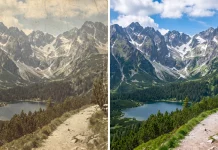
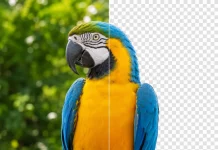
Image upscaling used to mean sacrificing quality for size. The Generative Upscale feature, introduced in late 2025, changes that narrative by using generative AI to enlarge images while enhancing detail. From the Image menu, you choose Generative Upscale, specify a scale of 2× or 4×, and pick an AI model. The options include Firefly Upscaler, which restores low‑resolution files up to 6,144×6,144 pixels, Topaz Gigapixel for preserving detail on up to 56‑megapixel files, and Topaz Bloom for adding creative detail on smaller images.
This tool gives photographers a viable way to enlarge old or small images for large prints or high‑definition digital displays. Unlike traditional resampling methods, Generative Upscale synthesizes detail and texture based on the chosen model, resulting in crisp edges and realistic textures. However, it’s important to monitor credit usage: Firefly upscaling costs between five and ten credits depending on file size, while the Topaz‑powered models consume more. Even with the additional credits, many creators find that the improved quality justifies the cost.
Harmonize: blending objects seamlessly into new scenes
Composite artists will appreciate Harmonize, a tool that automatically matches the color, lighting, and shadows of an inserted object to its new background. After placing a subject on a pixel layer, you select Harmonize from the Contextual Task Bar and choose a variation. The feature then creates a new layer with the adjusted object, blending it naturally into the scene. Each generation costs five credits.
Traditional compositing often requires meticulous manual adjustments using multiple adjustment layers. Harmonize speeds up that process by leveraging AI to analyze both layers and recommend adjustments. We appreciate that Harmonize doesn’t replace the need for manual tweaks; instead, it offers a fast starting point that still leaves full control over layers and masks. This quality makes it one of the standout Adobe Photoshop features for designers who regularly integrate stock elements or 3D renders into photographs.
Partner AI models: more voices for Generative Fill
A subtle but important development in 2025 is Adobe’s support for external AI models within Generative Fill. In addition to Firefly models, users can choose partner models such as FLUX.1 Kontext [pro], Gemini 2.5 (Nano Banana) and Gemini 3 (with Nano Banana Pro). Each model interprets prompts differently and yields unique styles or levels of realism. Designers who need specific aesthetic results—say, an illustrative look versus photorealism—can experiment with these models without leaving Photoshop.
This openness signals a broader trend: Adobe Photoshop features are becoming a platform rather than a closed ecosystem. The ability to switch models fosters creative diversity and positions Photoshop as a front‑end for various generative engines. We expect this modular approach to continue, potentially allowing independent models to plug into Photoshop in future releases.
Integration with Adobe Stock and the Adobe Cloud
Workflow efficiency matters as much as image quality. Adobe addressed this by enabling direct import of Adobe Stock photos into the Photoshop workspace. Instead of switching between web browsers and the desktop app, you can browse and license stock images inside Photoshop, then drag them onto the canvas. This integration speeds up mood‑board creation and reduces context switching.
Additionally, you can now export final assets straight to the Adobe Cloud. Collaborators receive access to the latest files without needing manual uploads, which streamlines team projects and client approvals. These productivity‑focused Adobe Photoshop features may not be as flashy as generative tools, yet they demonstrate a commitment to end‑to‑end workflows.
Improved selection, removal, and color control
Beyond AI generative tools, Adobe improved classic editing functions. The release notes mention enhanced Select Subject and Remove Background algorithms that produce more accurate cut-outs. This upgrade benefits portrait photographers and e‑commerce creatives who rely on quick extractions.
Another useful addition is a new Color and Vibrance adjustment layer. Unlike older methods that permanently altered pixels, this layer applies adjustments non‑destructively, letting you revisit and modify vibrance at any time. Together, these improvements demonstrate that Adobe Photoshop features continue to evolve in both headline‑grabbing and foundational areas.
Projects and Express templates: organizing creative work
Large teams often struggle with asset organization. The 2025 updates introduce Projects—a collaborative workspace for grouping assets, sharing them with teammates, and keeping feedback in one place. For designers working with clients or across departments, Projects reduce file confusion and ensure everyone references the same version.
Adobe also integrated Express templates into the Photoshop home screen. This connection encourages experimentation with ready‑made designs for social media posts, flyers, or quick presentations. While seasoned creatives might prefer building from scratch, novices and content marketers will welcome the jump‑start.
Performance, accessibility, and Quiet Mode
Many of the recent Adobe Photoshop features focus on under‑the‑hood improvements rather than new tools. Brushes, sliders, and transforms now respond instantly, and layers and blend modes update without lag. File operations such as opening, filtering, and exporting execute faster than before. Adobe modernized the interface with better contrast and keyboard navigation, making the software more accessible.
Another thoughtful addition is Quiet Mode, which reduces pop‑ups and notifications so you can concentrate. In an environment filled with prompts and tooltips, the ability to minimize distractions feels refreshing. These updates underscore that Adobe Photoshop features address not only the creative process but also the mental load of working with complex software.
Personal reflections and creative possibilities
As creative professionals who build compositions daily, we see these new Adobe Photoshop features as more than technical novelties. They represent a shift toward conversational editing. Generative Fill encourages artists to describe their vision instead of manually building every element. In addition, Generative Expand invites exploration of alternative compositions by extending boundaries, and Generative Upscale rescues small or outdated images that would otherwise remain unusable. Harmonize reduces the friction of integrating disparate elements.
Furthermore, the integration of partner AI models and cloud workflows hints at a future where Photoshop becomes a hub for creative AI services. We believe that embracing these tools is not about replacing human skill but augmenting it. Designers still need to refine their eye for composition, color harmony, and storytelling. However, with the latest Adobe Photoshop features, they can allocate more time to concept development and less to routine tasks.
FAQ about Adobe Photoshop features
Q1: How do I access the new Generative Fill and Generative Expand tools?
Open an image, select the area you want to modify, and click Generative Fill or Generative Expand on the Contextual Task Bar. For Generative Expand, use the Crop tool to enlarge the canvas before generating.
Q2: What are generative credits, and do I need them?
Generative credits measure how often you use AI‑powered tools. Standard features like Firefly‑based Generative Fill or Expand consume one credit per generation. Premium partner models and some upscale options consume more credits. You receive credits with your Creative Cloud subscription and can purchase additional credits if needed.
Q3: Do partner AI models offer better results?
Partner models such as FLUX.1 Kontext [pro] or Gemini 3 provide different visual styles and may excel at specific subjects. They require more credits but give you creative flexibility. Try both Adobe and partner models to see which suits your project.
Q4: How can I import stock photos directly into Photoshop?
The updated interface lets you browse and license Adobe Stock photos inside Photoshop. Simply use the Libraries or Discover panels to search for stock assets and drag them into your document.
Q5: Is Generative Upscale suitable for large prints?
Yes. If you select the Topaz Gigapixel model, you can upscale images up to 56 megapixels. This makes the tool ideal for creating large prints or high‑resolution displays from smaller originals. Remember that upscale quality depends on the source image and the model you choose.
Q6: Does Harmonize work with text layers or smart objects?
Harmonize currently works only on pixel layers. You should rasterize adjustment layers, text, and smart objects before applying Harmonize. After matching lighting and color, you can continue editing using standard techniques.
Q7: Where can I see upcoming Adobe Photoshop features?
The Adobe Help Center and release notes pages regularly list technology previews and beta features. These sections provide early access to experiments such as Dynamic Text or new AI tools. Keep an eye on these resources if you like staying ahead of the curve.
Feel free to browse WE AND THE COLOR’s AI and Technology categories to learn more about the best tools.
Subscribe to our newsletter!